

Paralives is an exciting life simulation game that a lot of players want to enjoy, but not everyone has a high-end gaming rig to run it. If your game keeps stuttering, dropping frames, or freezing during build mode, the problem is rarely the game itself. It usually comes down to wrong settings, outdated drivers, or your PC working harder than it needs to.
This guide walks you through every single setting that matters, from graphics options inside Paralives to Windows power plans and NVIDIA or AMD driver tweaks. Whether you are running integrated Intel graphics or a modest budget GPU, these tips will help you squeeze out better FPS, reduce lag, and actually enjoy playing without constant interruptions. No hardware upgrade required.
Why Paralives May Lag on Low-End PCs?
Common Causes of Low FPS and Stuttering
Most FPS problems in Paralives come from one of three things: your GPU struggling with texture or shadow rendering, your CPU getting overwhelmed by simulation tasks running in the background, or your RAM running out of space and forcing Windows to use slow virtual memory instead. Stuttering, which feels different from low FPS, is usually a sign of CPU or memory bottlenecks rather than a weak GPU. When your processor cannot keep up with both rendering and simulation at the same time, the game hesitates for a split second every few moments, even when your FPS counter reads 45 or 50.
Background programs also eat into your performance silently. A browser with twelve tabs open, a Discord overlay running, or antivirus software doing a real-time scan can each pull precious resources away from Paralives. On a low-end machine where every megabyte of RAM counts, these background tasks make a noticeable difference. Closing them before launching the game is one of the fastest free performance gains you can get.
Thermal throttling is another sneaky culprit. When your laptop or PC overheats, your CPU and GPU automatically reduce their clock speeds to protect the hardware. This creates sudden, jarring FPS drops that seem random but always happen after the machine has been running hot for a while. Cleaning dust from vents and using a laptop cooling pad can help more than most players realize.
Minimum vs Recommended System Requirements
Paralives targets modest hardware, but there is still a gap between minimum and recommended specs that matters a lot in practice. The minimum requirements ask for an Intel Core i5 or AMD Ryzen 5 processor, 8 GB of RAM, and a dedicated GPU with at least 2 GB of VRAM, such as an NVIDIA GTX 960 or AMD RX 470. At minimum specs, you will get into the game, but expect lower frame rates and some visual compromises.
The recommended specs push toward 16 GB of RAM and a GTX 1060 or RX 580-class GPU with 4 GB of VRAM. Running on recommended hardware means you can use medium settings and hit a fairly stable 60 FPS. Anything below minimum, especially integrated Intel UHD or AMD Vega graphics, requires aggressive settings adjustments to even reach 30 FPS in most areas of the game.
Knowing exactly where your hardware sits relative to these requirements helps you set realistic expectations. If you are below the minimum, your goal should be a stable 30 FPS with all settings as low as possible. If you meet minimum specs, targeting 45 FPS at low to medium settings is achievable with the right configuration.
How Hardware Limitations Affect Gameplay Performance
A GPU with only 2 GB of VRAM will struggle whenever Paralives loads detailed textures or renders complex scenes with multiple characters on screen. When VRAM fills up, the game starts pulling texture data from system RAM instead, which is significantly slower and causes visible stuttering and pop-in. Reducing texture quality directly addresses this specific bottleneck.
CPU limitations show up differently. A slow processor affects how quickly the game can calculate neighbor behavior, weather systems, and object interactions in the simulation. Unlike GPU-related issues that look like blurry graphics or low frame rates, CPU bottlenecks tend to produce uneven frame pacing where the game runs at 50 FPS but feels choppy and inconsistent. Enabling Game Mode and keeping background tasks closed both help reduce CPU pressure.
Check Your PC Before Changing Settings
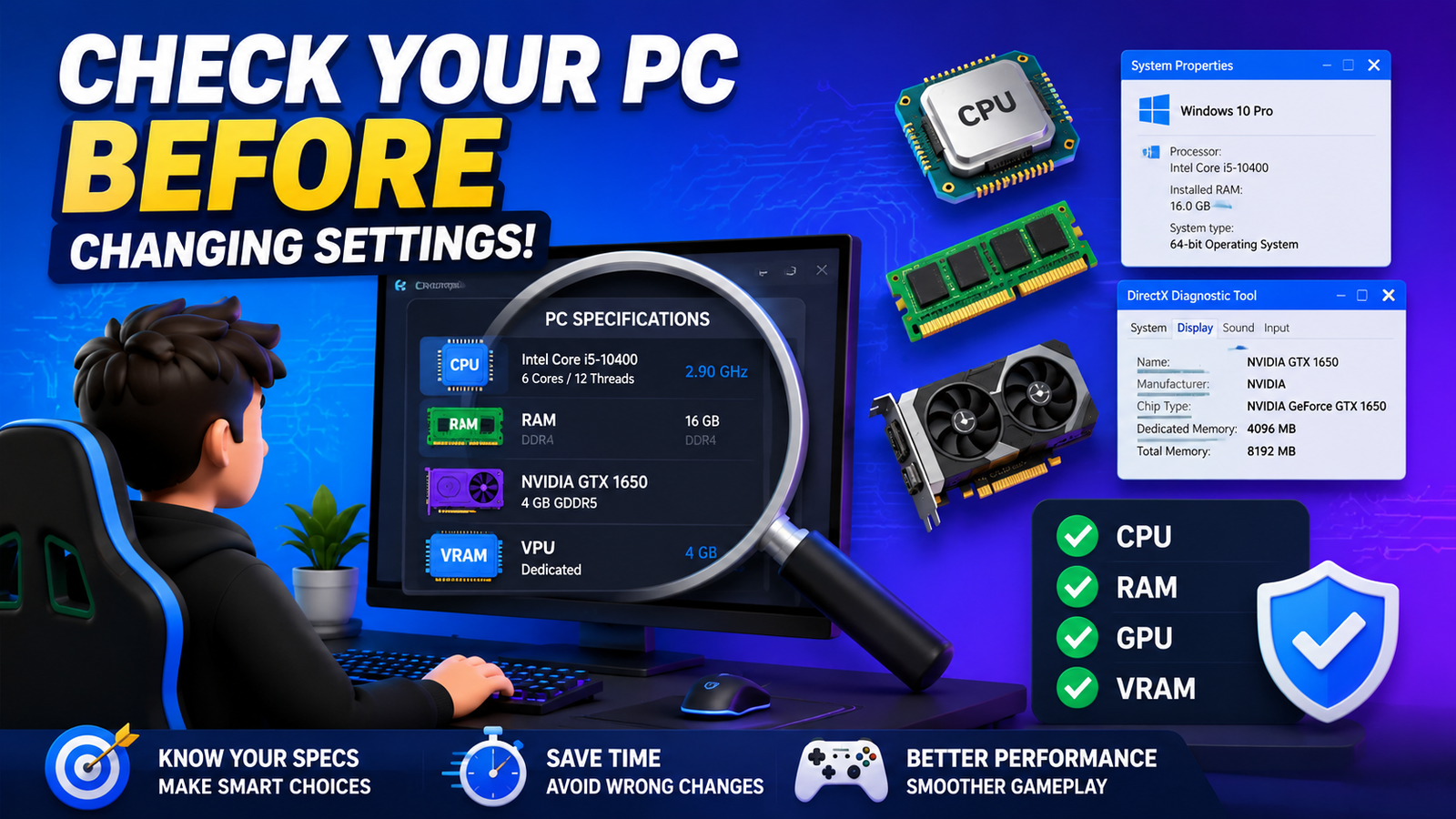
Check Your PC Before Changing Settings
Verify Your System Specifications
Before adjusting anything, you need to know exactly what hardware you are working with. Press Windows key plus the Pause key to open System Properties, which shows your CPU model, installed RAM, and Windows version at a glance. For GPU details, press Windows key plus R, type dxdiag, and hit Enter. Under the Display tab, you will find your graphics card model and the amount of dedicated VRAM available. Write these down or take a screenshot so you can reference them when following this guide.
Knowing your specs also helps you decide which sections of this guide apply most directly to your setup. Intel integrated graphics users will prioritize different settings than someone with a dedicated AMD card. Having accurate information from the start saves you time and prevents making changes that will not help your specific hardware.
Monitor CPU, RAM, and GPU Usage
Open Task Manager with Ctrl plus Shift plus Esc while Paralives is running and switch to the Performance tab. Watch your CPU usage percentage, RAM consumption, and GPU load in real time. If your CPU is sitting at 95 to 100 percent while the GPU is only at 50 percent, you have a CPU bottleneck. If your RAM is nearly maxed out, closing background applications should be your first priority before touching any graphics settings.
GPU-Z is a free tool that shows VRAM usage specifically, which Task Manager does not display clearly. If your VRAM is consistently at or above its maximum, lowering texture quality will produce the biggest performance improvement for your situation. Matching your fix to the actual bottleneck is far more effective than randomly lowering all settings at once.
Identify the Biggest Performance Bottleneck
Think of your PC like a chain. Performance is always limited by the weakest link. Running GPU-intensive settings on a machine with a weak CPU will not help much because the processor is what is holding back the frame rate. Conversely, lowering shadow quality when your GPU is only at 40 percent utilization and your RAM is maxed out wastes the wrong resource. Identify what is hitting its limit first, then target settings and optimizations that specifically address that component.
A quick test: run Paralives for ten minutes in a busy area of the game, then check Task Manager readings. Whatever component stays consistently above 85 to 90 percent is your bottleneck. Focus your optimization efforts there, and you will see real improvements rather than marginal gains from changing the wrong settings.
Best Paralives Graphics Settings for Maximum FPS
Display Mode: Fullscreen vs Windowed
Always run Paralives in Fullscreen mode on a low-end PC. Fullscreen gives your GPU exclusive control over the display, which means less overhead from Windows managing window compositing in the background. Borderless Windowed mode looks the same visually but actually runs slightly slower because Windows still treats it like a window and applies desktop compositing. On a machine with limited GPU performance, this difference can mean 5 to 10 extra FPS for free, simply by switching the display mode.
Recommended Resolution Settings
Dropping your resolution is the single most powerful performance change you can make. Running at 1280×720 instead of 1920×1080 cuts the number of pixels your GPU needs to render by more than half, which can nearly double your frame rate in some scenarios.
Yes, the image will look softer, but smooth 45 FPS at 720p feels far better to play than choppy 20 FPS at 1080p. If your monitor supports it, 1600×900 is a good middle ground that gives decent visual quality while substantially reducing GPU load.
Texture Quality Settings
Set texture quality to Low on very low-end systems. This directly reduces VRAM consumption, which is often the primary bottleneck on cards with 2 GB or less. Medium textures are acceptable if you have a dedicated GPU with 4 GB of VRAM and are only experiencing mild performance issues.
High textures are not worth considering until you have at least a GTX 1060 equivalent or better. The visual difference between Medium and Low in Paralives is less noticeable than in most games because the art style is somewhat stylized rather than photorealistic.
Shadow Quality Settings
Shadows are extraordinarily expensive to render and offer very little gameplay benefit on low-end hardware. Set shadow quality to Low or turn it completely off if you need maximum performance. Disabling shadows entirely can add 15 to 25 FPS on weak GPUs because shadow rendering requires additional render passes for every light source in the scene. This is one of the highest-impact settings in any life simulation game, and Paralives is no exception. You can always enable Low shadows for screenshot mode and disable them during actual gameplay.
Anti Aliasing Settings
Turn anti-aliasing completely off on low-end hardware. Anti-aliasing smooths jagged edges but at a real GPU performance cost, especially MSAA, which multiplies the rendering workload by 2x or 4x. On a low-end machine, those jagged edges are a fair trade for substantially smoother gameplay.
If you find the jaggies truly distracting, FXAA is a post-process filter that has almost no performance cost and softens edges reasonably well. TAA should be avoided on low-end systems due to its blur and performance overhead. For most low-end players, simply turning anti-aliasing off is the right call.
View Distance and Object Detail
Reduce view distance to Low or Medium. This setting controls how far away objects, buildings, and characters are rendered at full detail before the game switches to lower-quality simplified versions. On a high-end PC, a long view distance creates a rich, populated world.
On a low-end machine, it means your GPU is constantly rendering hundreds of objects at once that you may not even notice. Setting this to Low keeps only nearby objects at full detail and can meaningfully reduce GPU workload in densely populated neighborhood scenes.
Effects and Post-Processing Options
Post-processing effects like bloom, depth of field, lens flare, and chromatic aberration are primarily cosmetic and carry real performance costs. Turn all of these off on low-end hardware. Motion blur should especially be disabled because, beyond hurting performance, it makes the game feel worse to play at lower frame rates by adding visual smearing on top of already choppy motion. With all post-processing disabled, the game looks cleaner and sharper in motion, which most players actually prefer.
Best Low-End Settings Preset for Stable Performance
Here is a complete starting point for low-end hardware. Set display to Fullscreen, resolution to 1280×720 or 1600×900, texture quality to Low, shadow quality to Off, anti-aliasing to Off, view distance to Low, effects to all Off, and post-processing to Off. This combination targets 30 to 45 FPS on integrated graphics and 45 to 60 FPS on entry-level dedicated GPUs like a GTX 1050 or RX 570. From this baseline, add settings back one at a time and test how each one affects your frame rate.
Advanced Paralives Performance Settings
Reduce Background Simulation Load
Life simulation games run complex background calculations even for characters and households you are not directly controlling. In Paralives, you can reduce how much simulation work happens off-screen by limiting the active neighborhood zone or adjusting simulation detail settings in the options menu.
On a CPU-limited machine, trimming these background calculations can meaningfully improve frame pacing and reduce stuttering even when your FPS counter looks acceptable. Every simulation cycle, the CPU does not have to compute, which is time it can spend on rendering the current frame.
Lower Crowd and Environment Details
Reducing the density of ambient characters walking around the neighborhood helps both CPU and GPU performance simultaneously. Fewer characters means fewer animation calculations for the CPU and fewer draw calls for the GPU. If Paralives offers a crowd or ambient detail slider, move it to its lowest setting on budget hardware. The game world will feel slightly less alive, but the performance gain is usually noticeable and worth the trade in most casual play sessions.
Optimize Build Mode Performance
Build mode in life simulation games is notoriously GPU-intensive because it renders a single large lot with all objects visible and interactive at once. Lower your resolution and turn shadows off before entering build mode for extended sessions. Some players keep a second graphics preset saved specifically for build mode that prioritizes stability over visual quality.
When doing intensive building work, closing every other application and keeping your room cool matters more than during regular gameplay because build mode maintains sustained GPU load for extended periods.
Improve Loading Times and Responsiveness
Long loading screens are usually a storage speed issue rather than a CPU or GPU problem. If Paralives is installed on a mechanical hard drive, moving it to an SSD will drastically cut loading times. The difference between an HDD and an SSD for game loading can be 60 to 80 percent faster load times in practice. Even a budget SATA SSD costing under thirty dollars is a transformative upgrade for games installed on an old spinning disk drive.
Close Background Apps to Gain More FPS
Applications That Commonly Reduce Performance
Web browsers are among the worst offenders for background resource consumption. Chrome and Edge can each use 500 MB to over 1 GB of RAM with multiple tabs open, directly competing with Paralives for system memory. Spotify, Discord, OBS Studio, antivirus real-time scans, and Windows Update downloading in the background all chip away at the CPU and RAM budget your game needs. On a machine with only 8 GB of RAM, having 3 GB already consumed before the game even launches puts you in a difficult position from the start.
It might feel inconvenient to close your browser or pause your music player, but on a truly low-end machine, it is often the difference between a playable and unplayable experience. Try closing everything except essential system processes before launching Paralives and compare the difference in frame rate. Most players are surprised by how much headroom they reclaim this way.
Disable Unnecessary Startup Programs
Many applications set themselves to launch automatically when Windows starts, consuming resources before you even open a single program. Open Task Manager, click the Startup tab, and disable everything that does not need to run from the moment your PC boots.
Common culprits include Spotify, Discord, OneDrive, Teams, Adobe Creative Cloud, Steam, and various manufacturer utilities. Disabling startup programs does not uninstall them; it simply stops them from launching automatically so you can open them manually when you actually need them.
Free Up RAM Before Launching Paralives
Before opening Paralives, restart your PC if you have been using it for a while. Over time, Windows accumulates memory fragmentation and background processes that a fresh boot clears out. After restarting, do not open your browser or other applications.
Launch Paralives directly from a fresh boot, and you will typically have 1 to 2 GB more free RAM available compared to launching after several hours of regular computer use. For 8 GB systems, especially, this extra free RAM can prevent the game from having to use slow virtual memory.
Use Task Manager to Identify Resource-Heavy Processes
While in Windows with Paralives not yet running, open Task Manager and sort processes by the Memory column to see what is consuming the most RAM. Sort by CPU to see what is using processing power. Anything consuming significant resources that is not a core Windows system process is a candidate for closing before your gaming session.
Right-click on a process and select End Task to close it. Be careful not to close processes labeled as Windows or System, as these are required for the operating system to function correctly.
Enable Windows Game Mode for Better Performance
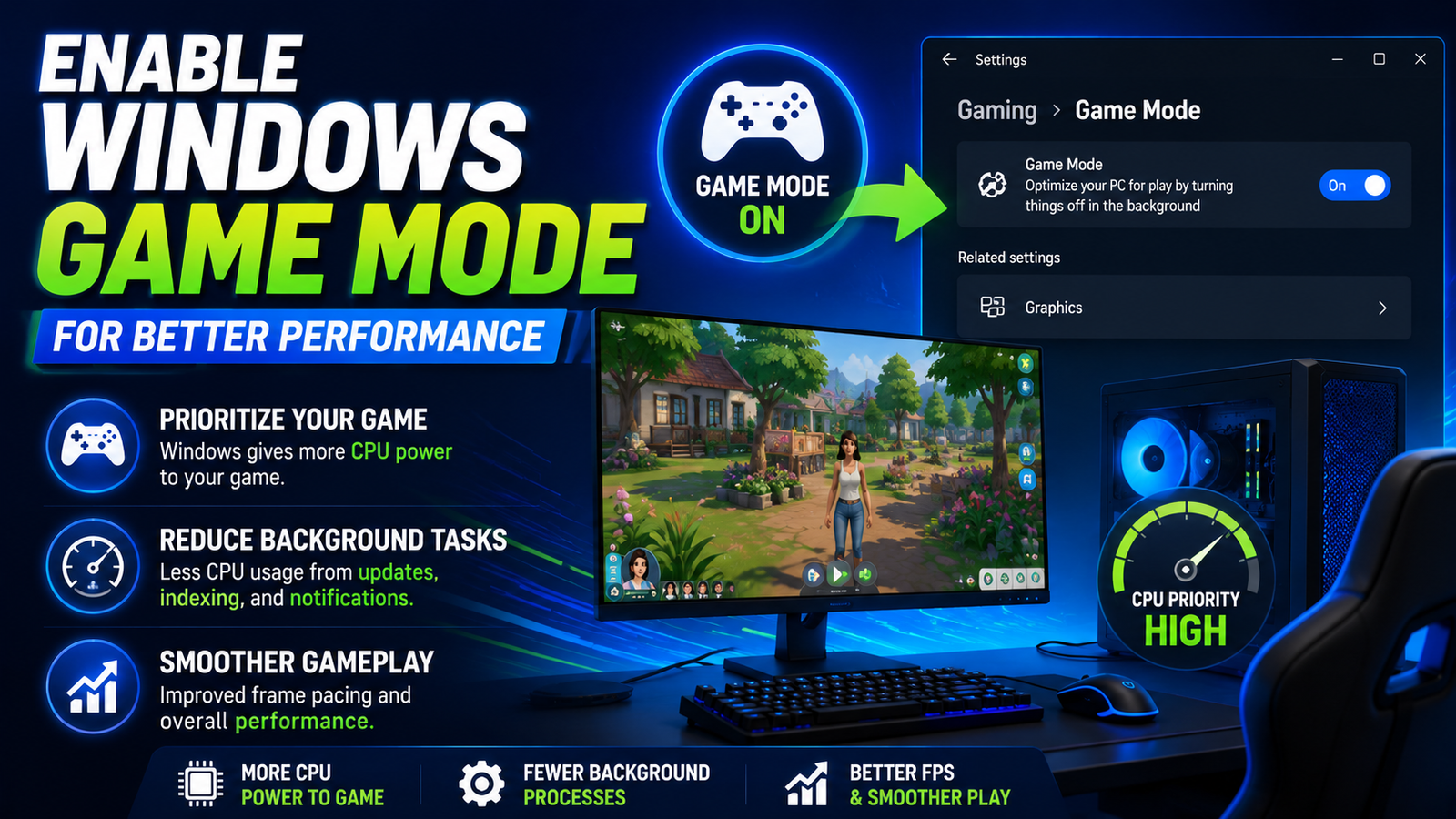
Enable Windows Game Mode for Better Performance
What Windows Game Mode Does
Windows Game Mode is a system feature that tells Windows to prioritize the active game over other background processes when allocating CPU resources. When Game Mode is active and Paralives is running, Windows will be more aggressive about giving the game priority access to CPU cycles and will reduce background maintenance tasks like Windows Update activity, indexing, and notifications. On a machine where the CPU is the bottleneck, this reallocation can produce measurably smoother frame pacing even without any settings changes inside the game itself.
How to Enable Game Mode
Press the Windows key and type Game Mode Settings, then click the first result. Toggle Game Mode to the On position. It takes effect immediately and stays enabled for all future gaming sessions. Some players report that Game Mode helps more on CPU-limited systems than on GPU-limited ones, but there is no downside to keeping it enabled, and it costs nothing to activate. Windows 11 has Game Mode enabled by default on most installations, but it is worth verifying that it is actually on rather than assuming.
Disable Xbox Game Bar If Needed
Xbox Game Bar is the overlay that opens with Windows key plus G and runs as a background process at all times, even when you never use it. While it offers screen recording and performance overlays, the background process does consume a small but real amount of CPU and RAM.
On a machine where every resource counts, disabling it in Game Mode Settings under the Xbox Game Bar section removes one more unnecessary background process. Turn off the toggle for Xbox Game Bar, and it will no longer run in the background during your gaming sessions.
Additional Windows Gaming Optimizations
In Windows 11, enable Hardware Accelerated GPU Scheduling if your GPU supports it. This feature moves GPU scheduling work from the CPU to the GPU itself, which can reduce CPU load and improve frame timing consistency. Find it in Settings under System, then Display, then Graphics.
Also, verify that Windows is set to use your dedicated GPU rather than integrated graphics for Paralives. In the same Graphics settings panel, add Paralives as an app and set it to High Performance mode to ensure it always runs on your discrete GPU.
Update Graphics Drivers for Better Stability
Why Outdated Drivers Cause FPS Drops
Graphics drivers are the software that translates game rendering instructions into commands your GPU can execute. Outdated drivers often miss optimizations for newer game engines and can have known bugs that cause stuttering, crashes, or unnecessary GPU overhead.
NVIDIA and AMD regularly release driver updates that include specific game optimizations and performance improvements. Running a driver from two years ago while playing a newer title means potentially missing substantial performance gains that have been added since your driver was released.
Updating NVIDIA Graphics Drivers
Download and install GeForce Experience from the official NVIDIA website if you do not already have it. Open it, navigate to the Drivers tab, and click Check for Updates. Always choose the Game Ready Driver option rather than the Studio Driver for gaming use.
After installing a new driver, restart your PC before launching Paralives. If a driver update causes new problems, you can roll back to the previous version through Device Manager by right-clicking your GPU under Display Adapters and choosing Properties, then the Driver tab, then Roll Back Driver.
Updating AMD Graphics Drivers
AMD Radeon Software handles driver updates for AMD GPU users. Open it from your system tray or search for it in the Start menu, then click the gear icon and navigate to Software to check for updates. AMD also offers its Auto-Detect and Install tool on its support website if you do not have Radeon Software installed. Like NVIDIA updates, always restart after installation. AMD Adrenalin Edition drivers often include per-game performance profiles that can be particularly helpful for newer titles.
Updating Intel Integrated Graphics Drivers
Intel integrated graphics users should check the Intel Driver and Support Assistant application, available free from Intel’s official website. This tool automatically detects your Intel hardware and checks for available driver updates. Intel regularly releases driver updates for its Arc and Iris Xe graphics that include performance improvements and bug fixes.
For older Intel UHD or HD graphics, keeping drivers current is still important for stability, even if the raw performance gains are smaller than on discrete GPUs.
Driver Settings That Can Improve Gaming Performance
After updating drivers, open your GPU control panel and set the power management mode to Prefer Maximum Performance. For NVIDIA, this is found in the NVIDIA Control Panel under Manage 3D Settings. For AMD, it is in Radeon Software under Gaming settings.
This prevents the driver from throttling GPU speeds to save power during gaming, which can cause sudden frame rate dips even when the GPU is not thermally stressed. Low-latency mode settings and texture filtering optimizations in both control panels can also provide small but meaningful additional gains.
Optimize Windows for Paralives
Switch to High Performance Power Plan
Windows defaults to a Balanced power plan that intentionally throttles your CPU and GPU speeds to save energy. For gaming, this means your processor may run at only 60 to 70 percent of its maximum speed when Paralives is first loading or during less demanding moments, then ramp up speed only after detecting increased load.
This ramp-up delay creates frame rate dips and inconsistency. Switch to the High Performance plan by searching Power Plan in the Start menu, selecting Change Power Plan, and switching to High Performance. On a laptop, be aware that this increases battery drain significantly.
Adjust Windows Visual Effects
Windows runs dozens of visual effects in the background, including window animations, transparency effects, and shadow rendering for the desktop interface. These consume small amounts of GPU and CPU resources constantly. Right-click on This PC, select Properties, then Advanced System Settings, then Performance Settings.
Choose Adjust for Best Performance to disable all visual effects at once. Your desktop will look less polished, but these effects were never worth keeping during gaming sessions on a low-end machine.
Free Up Disk Space
Windows needs adequate free disk space to function efficiently. When your storage drive gets above 80 to 90 percent full, performance degrades noticeably as Windows struggles to find space for temporary files and virtual memory. Run Disk Cleanup from the Start menu search to remove temporary files, old Windows update files, and cached data.
Aim to keep at least 15 to 20 GB free on the drive where Paralives is installed. If you are consistently short on space, consider uninstalling games you no longer play to free up room.
Keep Windows Updated
Contrary to popular belief, keeping Windows updated is beneficial for gaming performance, not harmful to it. Recent Windows updates have included substantial improvements to gaming performance, scheduler efficiency, and driver compatibility. Run Windows Update from Settings and install all available updates, including optional driver updates.
After updating, restart your PC before gaming. The only updates worth being cautious about are major Windows version updates, which occasionally introduce temporary compatibility issues. Regular security and quality updates are safe to install.
Check for Overheating Issues
Download HWMonitor or Core Temp, both free tools, and watch your CPU and GPU temperatures while Paralives is running. CPU temperatures above 90 degrees Celsius and GPU temperatures above 85 degrees Celsius indicate thermal throttling is likely occurring. If you are hitting these temperatures, your cooling solution needs attention.
Clean dust from all vents using compressed air, replace dried thermal paste on older machines, and consider a laptop cooling pad if you are gaming on a notebook. Proper cooling does not just protect hardware; it maintains consistent clock speeds and prevents the sudden FPS drops that thermal throttling causes.
Best NVIDIA Control Panel Settings for Paralives
Power Management Mode
Open NVIDIA Control Panel by right-clicking on your desktop and selecting it from the menu. Under Manage 3D Settings, find Paralives in the Program Settings tab and set Power Management Mode to Prefer Maximum Performance. This prevents GPU clock speed from dropping during less demanding moments and maintains consistent performance throughout your gaming session. On laptops, especially, the default Optimal Power setting can throttle your GPU significantly in ways that are immediately noticeable as FPS inconsistency.
Texture Filtering Options
Set Texture Filtering Quality to High Performance in NVIDIA Control Panel. This tells the GPU to use slightly less sophisticated texture filtering algorithms that are faster to process, with a visual quality difference most players will never notice during gameplay. Texture Filtering, Trilinear Optimization, and Negative LOD Bias should both be set to Allow or Off, respectively, to squeeze additional performance from texture rendering without changing the in-game texture quality setting.
Vertical Sync Settings
Turn Vertical Sync off both in Paralives settings and in NVIDIA Control Panel. V-Sync caps your frame rate to match your monitor refresh rate and introduces input lag, which, on a low-end machine that may already be struggling to reach 60 FPS, creates unnecessary overhead and choppy frame pacing. If screen tearing without V-Sync bothers you visually, try enabling Fast Sync instead, which has significantly less performance overhead than traditional V-Sync and causes less input lag.
Low Latency Mode Recommendations
Set Low Latency Mode to On in NVIDIA Control Panel for Paralives. This reduces the size of the render queue, meaning the CPU submits frames to the GPU just before they are needed rather than queuing them up in advance. On a system where CPU performance is the bottleneck, this can make the game feel more responsive even when raw FPS numbers stay the same. Ultra mode offers even lower latency but can reduce FPS slightly on underpowered GPUs, so stick with On rather than Ultra on very low-end hardware.
Best AMD Radeon Settings for Paralives
Radeon Anti Lag Settings
Enable Radeon Anti-Lag in AMD Radeon Software under the Gaming section for Paralives. Anti-Lag reduces the delay between your CPU and GPU to minimize input latency, which on AMD hardware can make a similar difference to NVIDIA’s Low Latency Mode. It does this without a meaningful performance cost and requires no configuration beyond toggling it on. This is one of the easiest and most impactful AMD-specific settings to enable on budget AMD GPUs.
Radeon Image Sharpening
Enable Radeon Image Sharpening at around 50 to 60 percent intensity if you are running Paralives at a reduced resolution. This post-process sharpening filter runs efficiently on AMD hardware and can partially offset the softness that comes from gaming at 720p or 900p. Unlike in-game anti-aliasing, which costs performance, Radeon Image Sharpening runs as a hardware-accelerated overlay with very low overhead. It makes reduced-resolution gaming look substantially better without hurting your FPS.
Frame Rate Optimization Options
In AMD Radeon Software, navigate to the gaming profile for Paralives and set the GPU workload to Graphics for the most optimized gaming performance. Enable Radeon Boost if your GPU supports it, which dynamically reduces resolution during fast movement and restores it when the scene is still, maintaining visual quality for static moments while improving performance during intensive sequences. This feature is particularly helpful in games where camera movement varies significantly between moments.
Graphics Profile Recommendations
Create a custom graphics profile for Paralives in Radeon Software rather than using global settings. This lets you optimize for Paralives specifically, without affecting how other applications run. Set Anti-Aliasing to Use Application Settings, Anisotropic Filtering to 2x, and Tessellation Mode to Override Application Setting with a maximum level of 4x. These adjustments reduce workload for complex geometry rendering without visibly degrading the game’s art style.
Fix FPS Drops
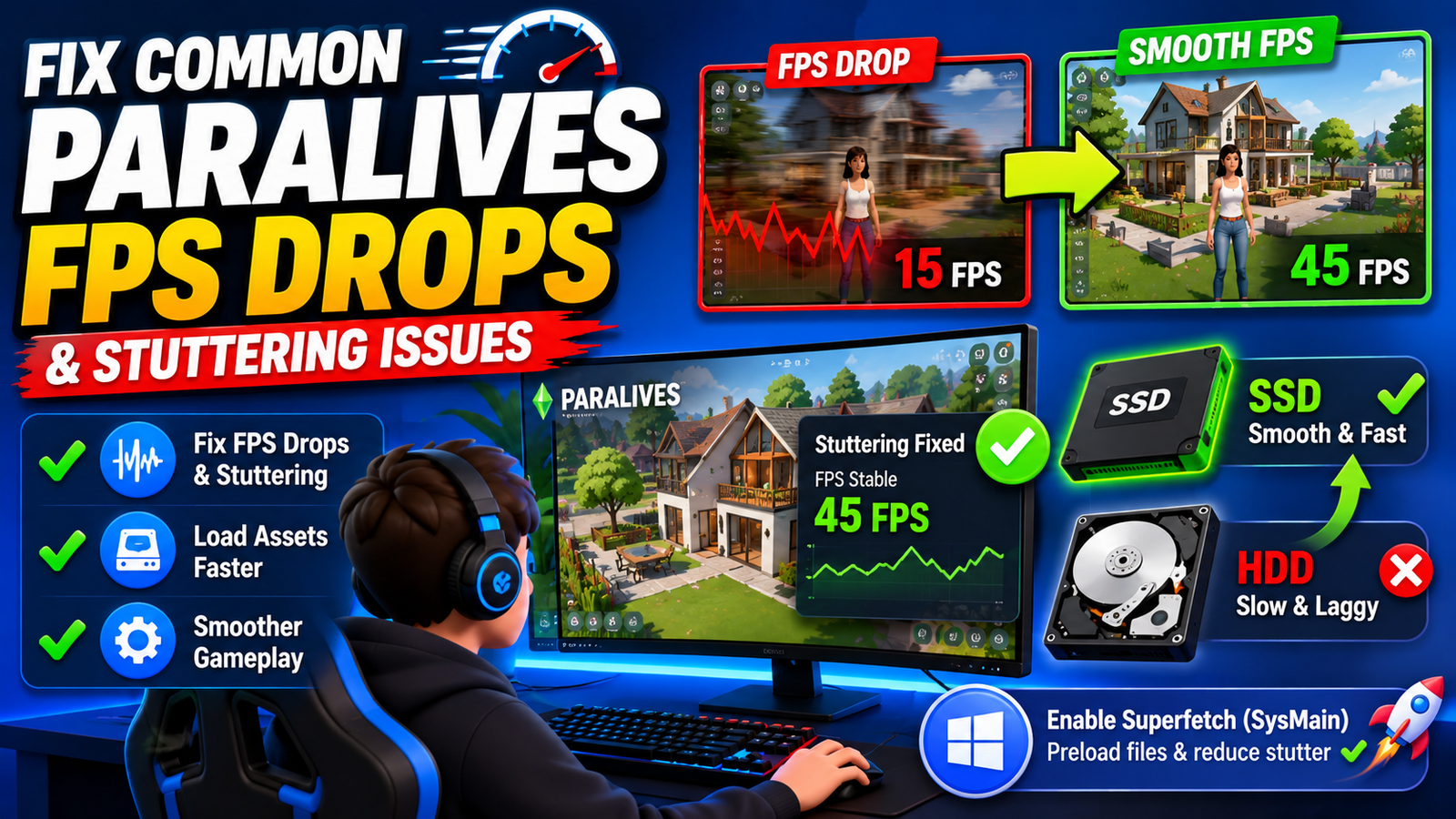
Fix Common Paralives FPS Drops and Stuttering Issues
Sudden Frame Rate Drops
Imagine you are building a new room in Paralives and your FPS suddenly tanks from 45 to 15 for a few seconds. This is almost always caused by the game loading new assets into memory. On an HDD, this loading stuttering is dramatically worse than on an SSD. The long-term fix is moving Paralives to solid-state storage, but in the short term, pausing and giving the game a moment to preload assets when you enter a new area can reduce the frequency of these sudden drops. Also, check that Windows Superfetch or SysMain service is enabled, as it helps preload commonly used game files.
Game Freezing During Gameplay
Brief freezes of one to three seconds that happen regularly often point to RAM running at capacity and the system switching to disk-based virtual memory. Check Task Manager’s memory usage while this is happening. If your RAM is above 90 percent utilized, the freeze is almost certainly a paging event. Closing background apps, adding more RAM if possible, or reducing in-game simulation load settings are the main solutions. If you cannot upgrade RAM, at least ensure Windows Page File is set to Automatic management, which gives it the best chance of managing virtual memory efficiently.
Long Loading Screens
Long loading screens that stretch beyond two to three minutes consistently suggest either an HDD bottleneck or a fragmented storage drive. Run Windows built-in Disk Defragmenter on mechanical hard drives to consolidate fragmented game files. Never defragment an SSD, as this causes unnecessary wear. For players on mechanical drives, defragmenting Paralives’ installation can noticeably improve loading times by reducing the number of physical disk seeks required to load game assets sequentially. Storage optimization should be part of your regular PC maintenance routine.
Crashes and Instability
Random crashes to the desktop during Paralives are most often caused by overheating, outdated drivers, or corrupted game files. Run your hardware at stock speeds rather than any overclock, verify game files through the game’s launcher, and check your GPU temperature using HWMonitor during a session to rule out thermal issues. If crashes happen specifically when loading into a new area or starting the game, the graphics driver is the most likely culprit, and updating or reinstalling it should be the first troubleshooting step.
Screen Tearing and Micro Stutters
Screen tearing occurs when your GPU pushes more frames per second than your monitor’s refresh rate can display, causing horizontal visual splits in the image. Micro stutters are small inconsistencies in frame timing that make movement look jerky, even at acceptable average FPS. Tearing is fixed by enabling V-Sync or Fast Sync in your GPU control panel. Micro stutters usually point to a CPU bottleneck or inconsistent frame delivery from background app interference. Closing unnecessary processes and enabling Windows Game Mode addresses the majority of micro-stutter complaints on low-end hardware.
Best Paralives Settings by PC Type
Use this reference table to find the recommended starting settings for your specific type of hardware. Adjust from there based on your actual FPS readings.
| Setting | Very Low End | Budget PC | Mid Range | Gaming Laptop |
| Resolution | 720p | 900p | 1080p | 1080p |
| Texture Quality | Low | Low | Medium | Medium |
| Shadow Quality | Off | Low | Medium | Medium |
| Anti Aliasing | Off | Off | FXAA | FXAA |
| View Distance | Low | Low | Medium | Medium |
| Post Processing | Off | Off | Low | Medium |
| Target FPS | 30 FPS | 45 FPS | 60 FPS | 60 FPS |
Very Low End PCs: Integrated Graphics
If you are running Intel UHD Graphics 620, 630, or AMD Vega 8 integrated graphics, your goal is simply to make the game launch and stay above 25 to 30 FPS. Set everything to its lowest possible value, run at 1280×720 or even 1024×768 if necessary, and accept that visual quality will be minimal. Paralives is still playable and enjoyable even at these low settings. The life simulation gameplay loop does not require high graphical fidelity to be engaging, and many players on modest hardware have hundreds of enjoyable hours in the game.
Budget Gaming PCs
A PC with a GTX 1050 Ti, RX 570, or similar entry-level dedicated GPU can run Paralives at Low to Medium settings, targeting 45 FPS with the right configuration. Use 900p resolution, Low textures, Low shadows, FXAA anti-aliasing, and Low view distance as your baseline. From there, you can experiment with bumping one setting at a time to find where your specific hardware reaches its limit. Budget gaming PCs often have more headroom than players expect once background apps are closed and drivers are updated.
Mid Range Systems
A GTX 1060, RX 580, or better can handle Medium settings at 1080p with stable 60 FPS in Paralives. Use medium textures and shadows, FXAA, medium view distance, and keep post-processing effects at Low rather than completely off. Mid-range systems benefit most from the Windows and driver optimizations in this guide rather than from dropping settings, since they generally have enough GPU headroom to run the game well at default settings with the right configuration tweaks.
Gaming Laptops
Gaming laptops introduce the additional challenge of thermal management. Even laptops with mid-range GPUs like a GTX 1660 Ti or RTX 3060 can throttle significantly when the chassis heats up after an hour of sustained gaming. Set the Windows Power Plan to High Performance when plugged in, use a cooling pad, and clean vents regularly. NVIDIA Optimus laptops should be configured to always use the dedicated GPU for Paralives rather than the integrated Intel graphics through the NVIDIA Control Panel’s program-specific settings.
Performance Tweaks That Actually Work
Use SSD Storage When Possible
This point deserves emphasis because it produces visible results that no settings change can replicate. An SSD transforms loading times from minutes to seconds and eliminates mid-game stuttering caused by asset streaming from slow mechanical storage. Moving Paralives specifically to an SSD while leaving other files on an HDD is a targeted investment. Boot drives that use an SSD while storing games on HDD still benefit from faster system startup and Windows processes, but the game itself needs to be on solid-state storage to eliminate load stutter.
Reduce Multitasking While Gaming
Multitasking while gaming is a luxury that low-end hardware cannot support. Every open application, browser tab, and background process takes resources directly from Paralives. Dedicate your PC entirely to the game during your play sessions. If you need to reference a build guide or YouTube video, use a second device like a phone or tablet rather than Alt-Tabbing between windows on the same machine. This single behavioral change can make a surprising difference on 8 GB RAM systems where memory is the primary constraint.
Maintain Adequate Cooling
Performance tuning and cooling are inseparable for sustained gaming sessions. A machine that runs fine for the first twenty minutes but becomes choppy after forty-five minutes is almost certainly thermal throttling. Clean dust from CPU and GPU heatsinks and fans every three to six months using compressed air. For laptops, the thermal paste between the CPU die and heatsink degrades over three to five years, and repasting can reduce temperatures by 10 to 20 degrees Celsius in many cases. Cooler hardware simply runs at higher and more consistent clock speeds.
Keep Drivers and Software Updated
Establish a habit of checking for GPU driver updates monthly. Both NVIDIA and AMD regularly push driver improvements that benefit gaming performance across their GPU lineup. Keeping Windows, your GPU driver, and Paralives itself updated ensures you benefit from every optimization that developers and hardware manufacturers have made available. This ongoing maintenance takes fifteen minutes per month and consistently yields better performance than most one-time tweaks.
Restart Your PC Before Long Gaming Sessions
A fresh Windows restart before a long Paralives session can free up 1 to 2 GB of RAM that accumulates in background processes and memory leaks over time. After booting, give Windows thirty seconds to settle its startup processes, then launch Paralives without opening anything else first. This simple practice means you start every gaming session with the maximum available system resources and avoid the gradual performance degradation that happens when PCs run continuously for days without a restart.
Recommended FPS Targets for Smooth Gameplay
30 FPS Experience
30 FPS is the minimum playable threshold for a life simulation game like Paralives. At 30 FPS, the game is completely controllable, and all gameplay mechanics function normally. The experience is noticeably less smooth than higher frame rates, but it is perfectly acceptable for extended sessions once you adjust to it. If you are consistently hitting 30 FPS with the low-end settings preset applied, you are in a good position, and the game is fully enjoyable on your hardware. Pushing for higher FPS by further reducing visual quality may not be worth the visual degradation trade-off at this point.
45 FPS Sweet Spot
45 FPS is arguably the sweet spot for low-end gaming. It is noticeably smoother than 30 FPS and significantly less demanding than trying to reach 60 FPS. On hardware that cannot maintain a stable 60 FPS, targeting 45 FPS with consistent frame timing often feels better to play than an unstable 55 to 60 FPS that dips frequently. If your settings allow you to consistently stay above 45 FPS without dramatic dips, you are in an excellent position for comfortable long play sessions.
60 FPS Smooth Gameplay
60 FPS represents smooth, comfortable gameplay where character animations look fluid, mouse cursor movement through menus feels immediate, and the build mode experience is satisfying rather than sluggish. If your hardware can maintain 60 FPS at the settings appropriate for your GPU, aim for that target. Once you hit consistent 60 FPS, raising settings further becomes a matter of visual preference rather than performance necessity. For anything above 60 FPS, Paralives is running optimally, and there is no further performance optimization needed.
Balancing Graphics Quality and Performance
The right balance between graphics quality and performance is different for every player. Some people are genuinely bothered by low-resolution textures, while others care far more about frame rate consistency than visual fidelity. Test different settings combinations during a ten-minute session in a busy area of the game, not just the main menu, to see real performance under load. Make one change at a time and note the effect before making another. Methodical testing always produces better results than randomly adjusting multiple settings simultaneously.
Final Low-End PC Settings Checklist
Quick Settings Summary
Inside Paralives: Fullscreen display mode, 1280×720 or 1600×900 resolution, Low textures, Off or Low shadows, Off anti-aliasing, Low view distance, all effects and post-processing off. Confirm that your dedicated GPU is selected for Paralives if you have both integrated and discrete graphics. Save these as a custom preset if the game supports saved profiles, so you can switch back easily after taking screenshots at higher settings.
Essential Windows Optimizations
Enable Windows Game Mode, disable Xbox Game Bar, switch to High Performance power plan, adjust visual effects to best performance, free up disk space to maintain at least 15 GB free, close all background apps before gaming, disable unnecessary startup programs, and verify that Hardware Accelerated GPU Scheduling is enabled if your GPU supports it. These settings take about fifteen minutes to configure and require no repeated maintenance after initial setup.
Driver and Hardware Maintenance Tips
Keep GPU drivers updated monthly, verify game files through the launcher when performance suddenly worsens, monitor CPU and GPU temperatures for thermal throttling signs, clean dust from cooling systems every few months, ensure Paralives is installed on an SSD where possible, and restart your PC before long gaming sessions. Treat driver and hardware maintenance as ongoing performance optimization rather than a one-time task, and your experience will remain consistently good over time.
Frequently Asked Questions
What Are the Best Paralives Settings for Low-End PCs?
For very low-end hardware, including integrated graphics, the best starting settings are Fullscreen display, 1280×720 resolution, Low textures, shadows Off, anti-aliasing Off, view distance Low, and all post-processing effects Off. From this baseline, you can add settings back incrementally. Budget dedicated GPU users can use 900p with Low textures and FXAA anti-aliasing for a slightly better visual experience while still targeting stable 45 FPS.
How Can I Improve FPS in Paralives Without Upgrading My PC?
Close background applications, update your GPU drivers, enable Windows Game Mode, switch to High Performance power plan, lower in-game graphics settings, especially shadows and resolution, disable post-processing effects, and configure your GPU control panel to prioritize performance over quality. Together, these free optimizations can add 15 to 30 FPS on many low-end systems without spending a single dollar on hardware.
Does Windows Game Mode Increase Paralives Performance?
Yes, particularly on CPU-limited systems. Windows Game Mode reallocates system resources to prioritize your active game over background processes and reduces interference from Windows maintenance tasks. The improvement varies by system, but most players on low-end hardware report smoother frame pacing and fewer sudden FPS dips after enabling it. It costs nothing to enable and has no downside, so there is no reason not to keep it on.
Which Graphics Setting Affects FPS the Most in Paralives?
Shadow quality and resolution are typically the two settings with the largest performance impact. Turning shadows off can add 15 to 25 FPS on weak GPUs. Reducing resolution from 1080p to 720p can nearly double your frame rate because it cuts pixel rendering load by more than half. After these two, texture quality matters most for systems with limited VRAM. Anti-aliasing is also highly impactful on older GPUs and should be disabled on low-end hardware.
Can Updating Graphics Drivers Fix Paralives Lag?
Yes, outdated drivers frequently cause unnecessary performance overhead, stuttering, and stability issues. Driver updates often include game-specific optimizations and bug fixes that directly improve FPS and frame pacing. Updating to the latest NVIDIA, AMD, or Intel driver takes about ten minutes and should always be the first step before troubleshooting other performance issues. If a new driver causes problems, rolling back to the previous version through Device Manager is straightforward.
Why Does Paralives Stutter Even When FPS Looks High?
Stuttering with acceptable FPS readings usually indicates frame pacing problems rather than raw performance limitations. This means frames are not being delivered at consistent intervals, even though the average count per second looks fine. Common causes include CPU bottlenecks from background processes, RAM paging events, or driver scheduling issues. Enable Windows Game Mode, close background apps, and set Low Latency Mode in your GPU control panel to address the most common frame pacing problems.
Is Paralives Playable on Integrated Graphics?
Yes, but it requires aggressive settings reductions. At 1280×720 with all settings on their lowest values, Intel UHD 620 and AMD Vega 8 integrated graphics can reach 25 to 35 FPS in less demanding scenes. Densely built neighborhoods and areas with many characters will push these averages lower. The gameplay is functional and enjoyable at these settings, though visually it will not match what the game looks like at higher specifications. Close every background app before launching and make sure your power plan is set to High Performance.
How Much RAM Is Recommended for Smooth Paralives Gameplay?
16 GB of RAM is strongly recommended for smooth Paralives gameplay. While the minimum spec is 8 GB, real-world performance on 8 GB systems involves frequent paging to virtual memory during gameplay, which causes the intermittent freezes and stuttering that many players mistake for GPU problems. At 16 GB, Paralives has adequate headroom to load assets without competing with Windows system processes for memory space. If you are on 8 GB and cannot upgrade, closing every background app before playing is essential to maintaining the most available RAM.
Final Takeaway
Paralives Best Settings For Low-End PC: Boost Performance Easily comes down to one simple idea. Your hardware does not need to be powerful; it just needs to be used smartly. Most FPS drops in Paralives are not permanent problems; they are the result of heavy settings, background apps, and unoptimized Windows configurations working against you.
If you apply even half of the tweaks in this guide, like lowering shadows, turning off anti-aliasing, enabling Windows Game Mode, and updating drivers, you will notice a clear jump in frame rate stability and a smoother gameplay experience. The biggest win is not just higher FPS, but fewer stutters during busy simulation moments.
Think of it like this. A well-tuned low-end PC can often feel better than a poorly optimized high-end system. That is the real power of performance tuning and smart game optimization techniques.