
The Paralives Save File Location On PC: Find Backup And Restore Your Progress is something every player should understand if they want to protect their gameplay data inside Paralives. Your save files store everything you build, create, and progress through in the game, and losing them can mean losing hours of effort instantly.
Most players only start searching for save files when something goes wrong, like a crash, reinstall, or missing progress. At that moment, Windows folders such as AppData become confusing because they are hidden by default. This guide explains where save files are stored, how to find them, how to back them up properly, and how to restore them safely. You will also learn how Steam Cloud works, how file structure is organized, and how to avoid common mistakes that lead to data loss
Finding the Hidden AppData Folder
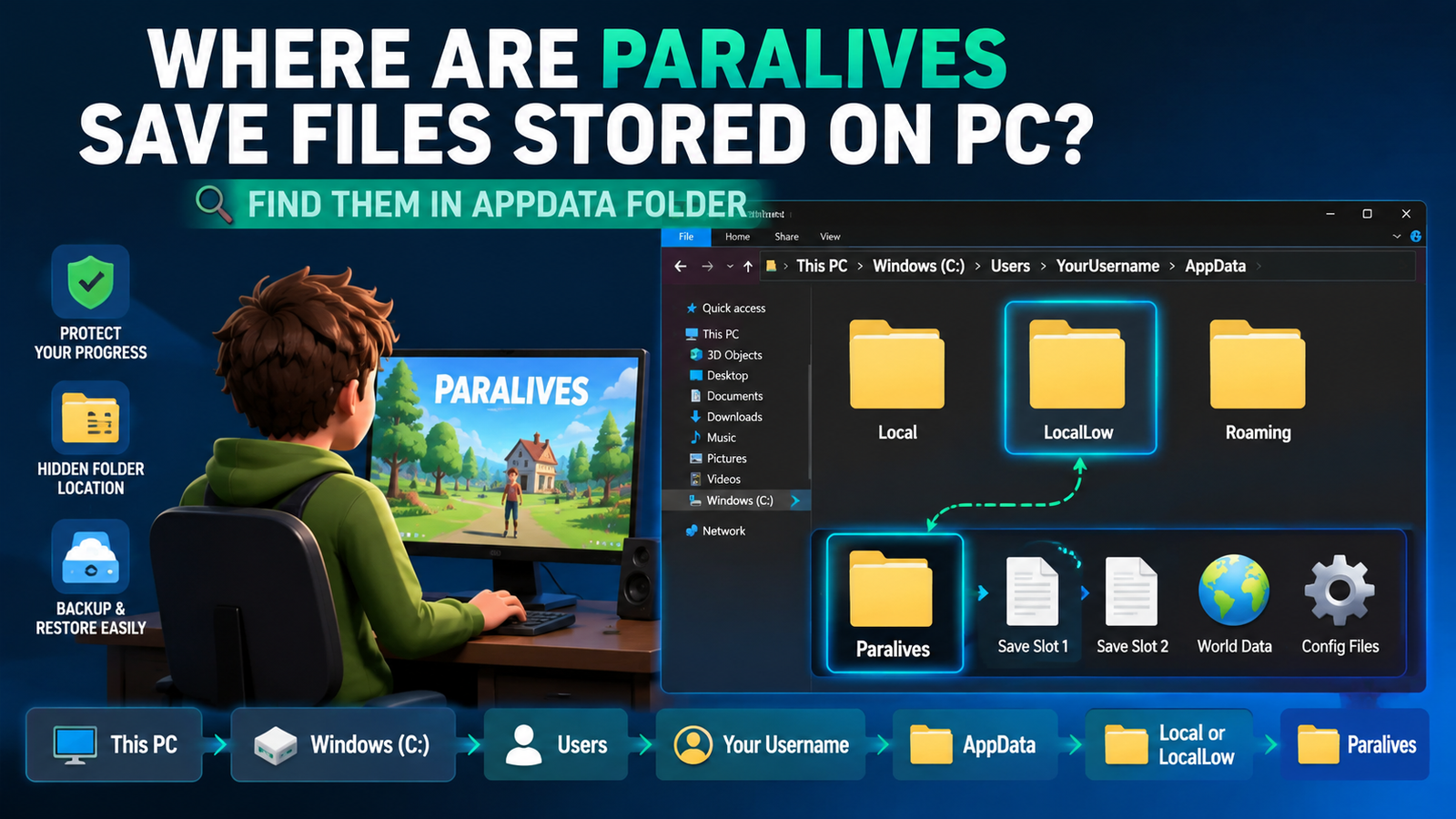
Locate the hidden AppData folder to access Paralives’ save data. Most Paralives save files are stored inside the hidden AppData folder on Windows. Knowing how to access this folder makes it easier to find, back up, and restore your game progress whenever needed.
Where Are Paralives Save Files Stored On PC?
The Default Paralives Save File Location
The default Paralives save file location on PC is stored inside your Windows user directory rather than the game installation folder. This is a standard system used by modern games, including Paralives, to protect user progress.
Your save data is usually located inside the hidden AppData folder. Inside AppData, the game creates a dedicated folder that contains your progress, characters, and world data. Many players think their saves are missing, but in reality, they are simply hidden by Windows settings.
Paralives Save Game Folder Path On Windows
The typical save path on Windows looks like this:
C Drive
Users
Your Username
AppData
Local or LocalLow
Paralives
This is where all progress files are stored for Paralives. These files include save slots, world data, and configuration details. It is important to understand that this location is separate from Steam installation folders provided by Valve Corporation, which is why uninstalling the game does not always remove saves.
Understanding The AppData Folder Structure
The AppData folder is divided into three parts: Local, LocalLow, and Roaming. Each section has a different purpose in Windows. Local is used for large game files and cache data. LocalLow is commonly used for Unity-based games and secure data storage. Roaming is used for settings that can sync across devices. Games like Paralives usually store save data in Local or LocalLow because these folders are designed for stable local storage.
Why is the Save Folder Hidden By Default?
Windows hides the AppData folder to protect system-level files from accidental modification. This is why many users cannot find the Paralives save file location on PC at first. The folder is not deleted or missing. It is simply hidden. Once you enable hidden items in File Explorer or use the Run command, it becomes visible like any normal folder.
Quick Answer For Players In A Hurry
If you want the fastest method:
Press Win + R
Type %AppData%
Press Enter
Go to Local or LocalLow
Open Paralives folder
This will take you directly to your save files in Paralives.
How To Find The Paralives Save Folder On Windows?
Using File Explorer To Locate Save Files
File Explorer is the easiest way to find your save files. First, enable hidden items from the View tab. Then navigate to AppData and open Local or LocalLow. Inside, you will find the folder for Paralives, which contains all your progress data.
Accessing The AppData Folder Through the Run Command
Press Win + R and type %AppData% to open the folder quickly. From there, go one step back and open Local or LocalLow. This method is widely used by PC gamers because it is faster than manual navigation.
Revealing Hidden Folders In Windows
If AppData is not visible, hidden folders are disabled. Open File Explorer settings and enable hidden items. Once enabled, Windows will show all system folders, including the save directory for Paralives.
Alternative Methods To Locate The Folder
You can also search “Paralives” in the Windows search bar. Sometimes it will directly show related directories. Steam installation folders from Valve Corporation may show game files, but save files are usually stored separately.
Troubleshooting Missing Save Files
If you cannot find your saves, check the following:
You are using the correct Windows account
Hidden folders are enabled
The game has been launched at least once
Cloud sync has not moved files
Most missing save issues are actually folder location problems, not data loss.
Understanding The Paralives Save File Structure
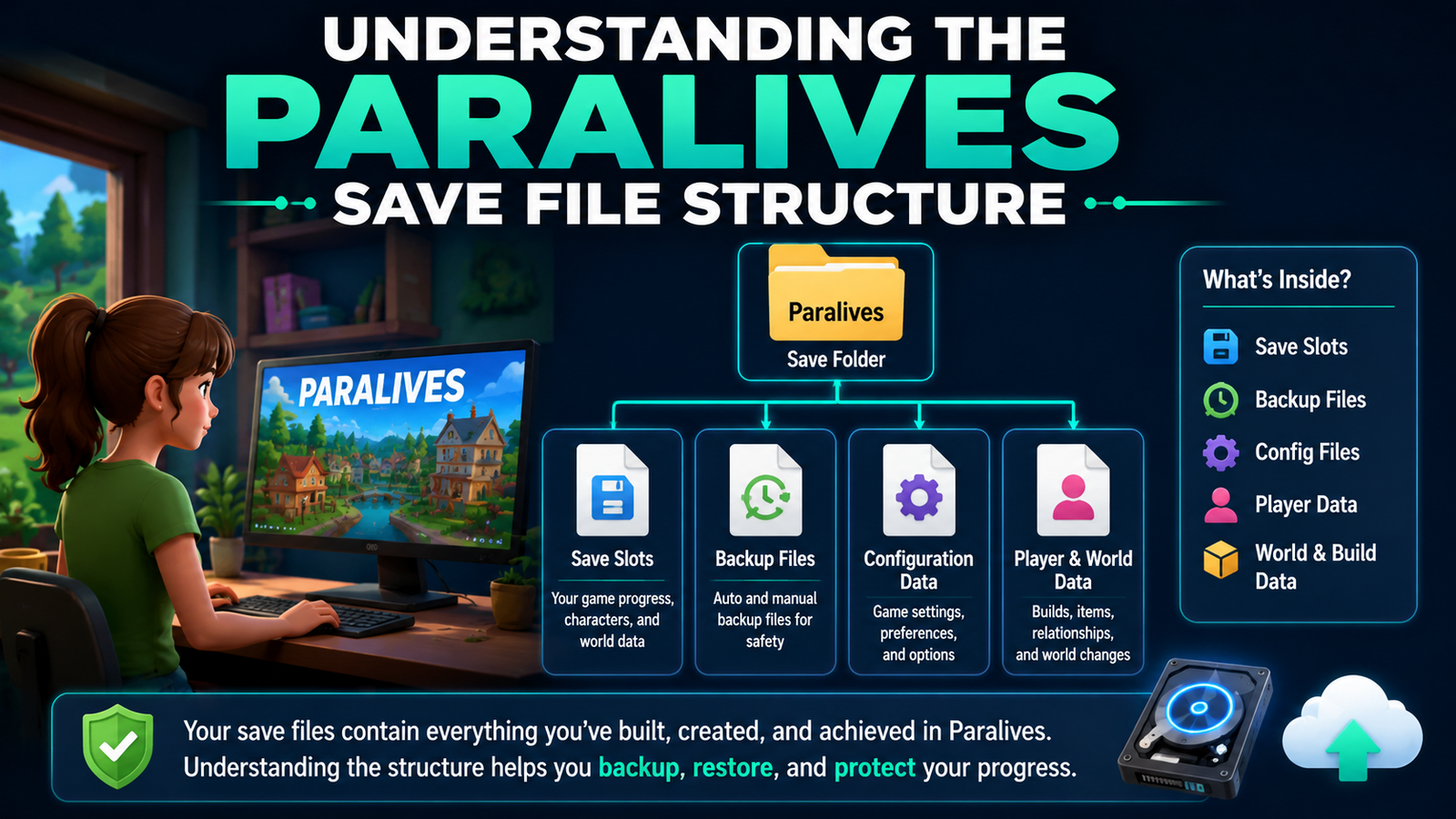
What Files Are Stored Inside The Save Folder?
Inside the save folder of Paralives, you will find save slots, backup files, and configuration data. These files store everything from characters to world changes and building progress.
Paralives Save File Format Type Explained
The save file format is usually structured data, such as JSON or a binary format. These formats are designed for performance and stability. They are not meant for manual editing because even small changes can break the save file.
Save Data Versus Configuration Files
Save data stores your gameplay progress, while configuration files store settings like graphics and controls. Keeping them separate ensures better stability in games like Paralives.
Why You Should Avoid Editing Save Files Directly?
Editing save files manually can easily corrupt them. Even a small formatting mistake can prevent the game from loading. It is always safer to use backups instead of modifying files directly.
How does Save Data Support Your Progress?
Save data acts like the memory of the game. It tracks everything you do, including builds, characters, and world changes in Paralives.
Backup Your Save Files
How to Back Up Paralives Save Files?
Why Regular Backups Are Important
Backups protect your progress from crashes, updates, and system errors. Without backups, you risk losing hours of gameplay instantly.
Manual Backup Method Step By Step
Locate the save folder
Copy the entire folder
Paste it into a safe location, like a USB or cloud storage
This creates a complete backup of your progress.
Creating Multiple Backup Versions
Instead of keeping one copy, create multiple versions with dates. This helps you recover older progress if needed.
Best Locations To Store Backups
Use external drives, USB devices, or cloud storage. Avoid keeping backups in the same folder as original saves.
How Often Should You Back Up Your Saves?
It is recommended to back up after major gameplay sessions or before updates in Paralives.
How To Restore Paralives Save Files?
When You Might Need To Restore A Backup
You may need restoration after reinstalling the game, a system crash, or accidental deletion.
Restoring Saves After Reinstalling The Game
Install the game first, close it, then replace the new save folder with your backup.
Replacing Existing Save Files Safely
Always rename the old folder before replacing it to avoid accidental loss.
Avoiding Common Restore Mistakes
Do not mix old and new files
Do not interrupt file copying
Do not overwrite without backup
Verifying That The Restore Worked
Launch the game and check if your progress appears correctly in Paralives.
Does Paralives Support Steam Cloud Saves?
Steam Cloud may support saves depending on the configuration by Valve Corporation.
How Steam Cloud Works
It stores save files online and syncs them across devices automatically.
Benefits Of Cloud Saves
It protects against hardware failure and allows access from multiple devices.
Limitations Of Steam Cloud
Sometimes sync conflicts occur and overwrite newer files.
Should You Still Keep Local Backups
Yes, local backups are still the most reliable method.
How To Transfer Saves Between PCs?
Moving Saves To A New Computer
Copy the save folder and paste it into the same AppData location on the new PC.
Using External Storage Devices
USB or SSD drives are reliable for transferring saves.
Syncing Through Cloud Services
Services like OneDrive can automatically sync and save folders.
What To Check Before Transferring Files
Make sure the game version and folder structure match.
Testing Saves On The New Device
Open the game and confirm everything loads correctly.
Common Save File Problems And Fixes
Save Files Not Appearing
Check the correct folder path and Windows account.
Missing Save Folder
Enable hidden items in Windows settings.
Corrupted Save Data
Restore from backup immediately.
Saves Lost After Updates
Check Steam Cloud and backup storage.
Permission Errors
Run File Explorer with proper permissions.
Best Practices To Protect Your Progress
Create A Backup Routine
Regular backups prevent major loss.
Keep Multiple Copies
Extra copies increase safety.
Avoid Editing Unknown Files
Only modify if you understand the structure.
Use Reliable Storage
Avoid unstable or low-quality drives.
Verify Backups Before Updates
Always test backups before updating Paralives.
Can Mods Affect Save Files
How Mods Interact With Saves?
Mods can change how save files are read and stored.
Risks Of Removing Mods
Removing mods can break saves or cause missing content.
Mod Compatibility
Always check mod updates before changes.
Protecting Saves Before Mods
Always create a backup first.
Recovering Mod Issues
Restore a clean backup if problems occur.
Local Saves Versus Cloud Saves
Key Differences
Local saves are stored on the PC, while cloud saves are stored online.
| Feature | Local Saves | Cloud Saves |
| Control | Full | Platform based |
| Safety | Hardware risk | Sync risk |
| Access | Single PC | Multiple devices |
Advantages Of Local Saves
Full control and no internet requirement.
Advantages Of Cloud Saves
Easy syncing across devices.
Which Is More Reliable
Using both together is best for Paralives.
Frequently Asked Questions
Where Are Paralives Save Files Stored On PC?
They are stored inside the AppData folder in Local or LocalLow.
What Is The Save Game Folder Path On Windows?
Users → Username → AppData → Local or LocalLow → Paralives.
How Do I Back Up Save Files?
Copy the save folder and store it in a safe location.
Does Steam Cloud Support Saves?
Yes, depending on the configuration by Valve Corporation.
What Is The Save File Format Type?
Usually JSON or binary structured data.
Can I Move Saves To Another PC?
Yes, by copying the AppData save folder.
Why Are Save Files Missing?
They are usually hidden or stored under a different user profile.
Can Mods Corrupt Save Files?
Yes, incompatible mods can break save data, so backups are important.
Final Takeaways
The Paralives Save File Location On PC: Find Backup And Restore Your Progress is always inside AppData, even if Windows hides it. Once you understand the location, managing your progress becomes simple and safe.
Your save files represent your effort and creativity inside Paralives. Regular backups are the best way to protect them from crashes, updates, or accidental loss. Local backups combined with Steam Cloud give the strongest protection overall.