

Paralives save issues can hit at the worst possible moment — right after you’ve spent hours building your dream home or carefully raising a household. One day, the game loads fine, and the next, you’re staring at an error screen or a blank save slot. Save corruption, failed auto saves, Steam Cloud conflicts, and mod-related damage are all real problems that players run into. This guide covers every recovery method available, from checking backup files and restoring earlier versions to fixing Steam Cloud sync errors and rebuilding save data after a crash. Whether you lost an hour of progress or several days of gameplay, the steps below give you the best shot at getting it back.
Why do Paralives Save Files Get Corrupted?
Save file corruption is one of the most frustrating things that can happen in any simulation game, and Paralives is no exception. Understanding why it happens puts you in a much stronger position to prevent it and to recover when it does strike. Most corruption does not happen randomly — it happens because of a specific event that interrupted the save process or introduced incompatible data.
Common Causes of Save File Corruption
Save data gets damaged in several predictable ways. Power outages or sudden shutdowns during an active save write are among the most destructive, because the game writes to disk in a sequence — if that sequence stops halfway through, the resulting file is incomplete. Storage hardware issues, like a failing hard drive or a full SSD, can also produce broken save records. Less obvious causes include running the game from a drive with write errors or saving to a folder where the user account lacks full write permissions.
Interrupted Auto Saves
Auto save in Paralives runs on a timer and triggers at key moments during gameplay. If the game is in the middle of writing an auto save when you alt-tab, sleep the computer, or hit a system lag spike, the save file may not close properly. An interrupted auto save often appears in your save folder at the expected size, but fails to load or shows corrupted household data. This is one of the most common save problems players report, and it is usually recoverable because an earlier backup copy often still exists alongside it.
Game Crashes During Saving
A game crash mid-save is the highest-risk scenario for save data loss. When Paralives crashes while actively writing to the save file, it can overwrite a clean file with partial data, leaving nothing usable behind. Crashes caused by GPU driver failures, out-of-memory errors, or conflicts between mods and core game systems are particularly dangerous. If Paralives has crashed on you more than once during a session, do not rely solely on the most recent save. Always keep a manual backup from before the session.
Mod and Custom Content Conflicts
Mods and custom content (CC) add tremendous depth to Paralives, but they can also introduce save instability. A mod that hooks into the save system incorrectly, writes data to a slot it does not own, or conflicts with a game update can silently damage your save file. This kind of corruption is tricky to diagnose because the save file may load initially and only show problems later — missing households, invisible lots, or progress that resets.
Steam Cloud Synchronization Errors
Steam Cloud sync is convenient but not foolproof. If you play Paralives on two machines and one of them has a local save that is newer than the cloud version, Steam may present a conflict warning. Choosing the wrong file during that conflict dialog can overwrite a good save with an older or damaged one. Sync interruptions caused by a lost internet connection mid-upload can also leave a partially transferred file in the cloud.
Storage and Permission Problems
Save files write to a specific folder on your system. If that folder is inside a directory managed by cloud backup software, antivirus tools, or parental controls, those programs may lock the file during a save attempt. A locked file cannot be written to properly, and the result is a damaged save state. Confirming that your Paralives save directory has unrestricted read and write permissions is a basic but often overlooked fix.
Signs Your Paralives Save File Is Corrupted
Corrupted saves do not always announce themselves with a clear error message. Some forms of damage are subtle and only reveal themselves when you try to access specific content. Recognizing the signs early can stop you from playing further into a damaged file and making recovery harder.
Save File Fails to Load
The most obvious sign is a save that simply refuses to open. You select it from the menu, the game begins loading, and then it either throws an error code or returns you silently to the main menu. This behavior almost always means the save records are damaged at the file level — the game cannot parse the data it needs to construct your world.
Infinite Loading Screens
A save that gets stuck on a loading screen without ever completing is a classic sign of partial corruption. The game can read enough of the file to start loading, but it hits a broken data segment that it cannot process. This is actually a hopeful sign, because partially corrupted saves are often recoverable using backup restoration or mod removal.
Missing Households, Lots, or Progress
Sometimes a save loads completely, but the world looks wrong — households have disappeared, lots are empty, or several hours of progression are simply gone. This points to data being partially overwritten, often by a failed auto save or a mod conflict. The world structure is intact, but specific records within it have been damaged or deleted.
Error Messages During Startup
Error messages that reference save files by name, mention data integrity issues, or point to specific file paths are direct confirmations of corruption. Note the exact wording of any error message before attempting recovery — it can tell you whether the problem is with the save file itself, the save folder permissions, or a linked mod.
Game Freezes After Loading a Save
A save that loads visually but freezes or becomes unresponsive shortly after entering the game is a sign that the corruption exists in active gameplay data rather than the file header. These saves are harder to repair, but sometimes respond well to mod removal or restoration from a backup made just before the problem began.
Before You Start Recovery: Protect Your Existing Save Files
Before touching anything, your first job is to protect what you still have. Attempting recovery without backing up first is a common mistake that can make things significantly worse — an unsuccessful repair attempt can damage the file further or overwrite a partially working save.
Create a Manual Backup
Open File Explorer on Windows and navigate to your Paralives save folder. Select all save files and copy them to a completely separate location — a different drive, a USB stick, or a cloud folder outside of Steam. Do not cut and paste. Copy only. This ensures that your original files remain untouched, no matter what happens during recovery. Label the folder with today’s date so you can identify it later.
Locate the Paralives Save Folder
On most Windows systems, Paralives saves are stored in the user data folder under AppData. The typical path is:
C:\Users\[YourUsername]\AppData\Local\Paralives\Saves
AppData is a hidden folder by default. To access it, open File Explorer, type %localappdata% into the address bar, and press Enter. Then navigate to the Paralives folder. On Steam, some save data may also exist inside the Steam userdata directory, depending on how Steam Cloud is configured.
Copy Saves to a Safe Location
Create a dedicated backup folder somewhere outside your normal game directories — the Desktop works fine for temporary recovery purposes. Copy all files from your save directory into this folder. This includes any files that do not currently appear corrupted, because you may need them as reference points during the recovery process.
Verify Backup Integrity
Before proceeding, confirm that your backup files are complete. Check the file sizes against what you see in the original save directory. If any file is copied as zero bytes or shows a significantly different size than the original, the copy itself may have failed. Re-copy those files before moving forward.
Recover a Corrupted Paralives Save File
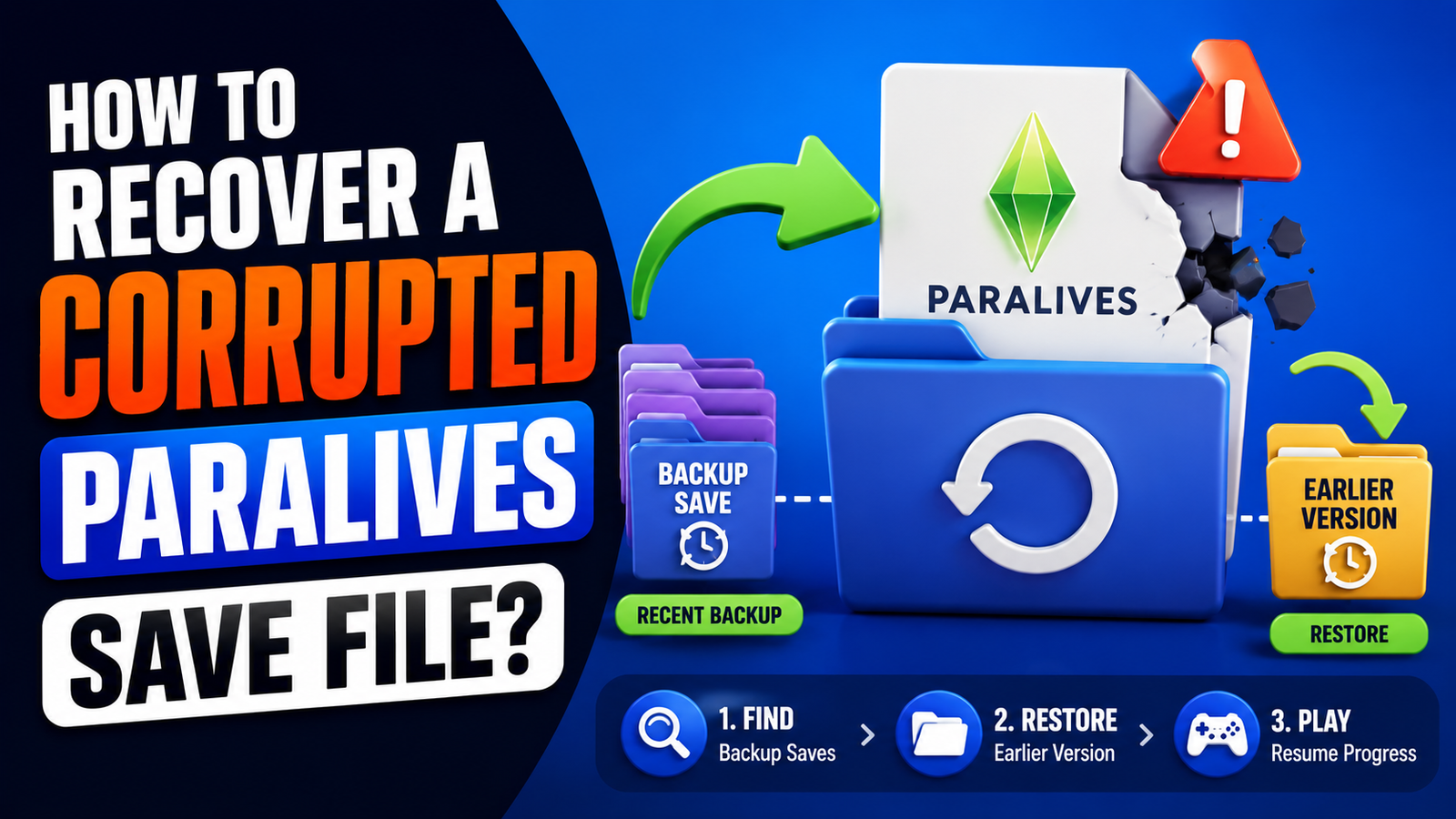
How to Recover a Corrupted Paralives Save File?
With your backups secured, you can now begin recovery in an order that goes from the least risky method to the most involved. Starting simple saves time and avoids unnecessary steps.
Check for Recent Backup Saves
Paralives creates backup save copies during normal gameplay. These are typically stored in the same save directory with a slightly different filename or timestamp suffix. Before attempting any repair, look through your save folder for files with names like save_backup, autosave_1, or any file with a recent modified date that is different from your main save. These backup saves often contain your progress from just before the corruption occurred.
Restore an Earlier Save Version
If a recent backup exists, rename your corrupted save file (add _broken to the name rather than deleting it) and rename the backup file to match the original save slot name. Launch the game and attempt to load it. If this works, you have successfully restored your progress to the last clean checkpoint.
Remove Recently Added Mods or Custom Content
If the corruption started after you added a new mod or CC pack, remove those files from your mods folder and test the save again. Move them to a temporary folder outside the game directory rather than deleting them outright. A single incompatible mod can lock an otherwise healthy save into a broken state.
Test the Save in a Clean Game Environment
A clean game environment means no mods, no custom content, and no external programs running alongside the game. Temporarily rename or empty your mods folder, launch Paralives fresh, and try to load the affected save. If it loads in a clean environment, the problem is definitely mod-related.
Verify Game Files Through Steam
Open Steam, go to your library, right-click Paralives, choose Properties, then Local Files, and click Verify Integrity of Game Files. Steam will check every core game file against known good versions and replace anything corrupted or missing. This does not affect your save files but fixes game-side issues that can prevent saves from loading properly.
Identify Problematic Save Data
If none of the above resolves the issue, the problem may be inside the save file itself. Check the Paralives community forums and official Discord for any known issues with your specific version of the game — sometimes a game update introduces a save-breaking bug that developers are already working to fix, and a patch is already available.
Paralives Save File Repair Method
Not every corrupted save is a total loss. Some saves are only partially damaged and can be rebuilt through a careful restoration process.
Determine Whether the Save Is Partially or Fully Corrupted
A fully corrupted save fails to load at all and returns an immediate error. A partially corrupted save loads but shows missing data or instability. Partial corruption is far more recoverable — the game can read most of the file even if specific sections are broken.
Isolate the Affected Save Slot
If you have multiple save slots, test each one individually. Sometimes only one slot is damaged while others remain intact. Knowing exactly which save is affected helps narrow the recovery effort and confirms that the problem is file-specific rather than a broader game installation issue.
Use Backup Copies for Repair Attempts
Work exclusively from copies during repair attempts — never from originals. Swap backup versions into the active save slot one at a time, testing each one after the swap. Go from newest to oldest backup until you find one that loads cleanly.
Rebuild Save Data Through Safe Restoration
In cases where no backup works but the save loads partially, consider loading the partially working save and manually re-creating the content that was lost. This is not ideal, but it is a valid strategy when the save structure is recoverable and only specific household or lot data is missing. It is faster than starting completely fresh.
Validate the Repaired Save Before Continued Play
Before treating the restored save as fully recovered, play through at least two full in-game save cycles and exit the game properly each time. Confirm that the save reloads correctly after each exit. Only when you have confirmed stable behavior over multiple sessions should you remove your backup copies.
Fix Auto Save Issues
Paralives Auto Save Not Working: Complete Troubleshooting Guide
Auto save is a safety net that works quietly in the background. When it stops working, you may not even notice until you lose significant progress after a crash. This is one of the most common Paralives save errors reported by players.
How Auto Save Works in Paralives
Paralives auto save triggers at set intervals during gameplay and at specific transition points, such as moving between lots or ending a household session. Auto save writes to a dedicated auto save slot rather than overwriting your manual saves. If auto save is silently failing, your manual saves and backup saves remain unaffected — but you lose the safety net of continuous progress preservation.
Check Auto Save Settings
Open the game settings and confirm that auto-save is enabled and set to your preferred interval. Settings can occasionally reset after a game update. If auto save was previously working and suddenly stopped, a settings reset following an update is one of the first things to check.
Confirm Available Storage Space
Auto save fails silently when the drive it is writing to has insufficient free space. Check the available space on your system drive (typically C:) and on any secondary drive you may have redirected saves to. Paralives save files are not large individually, but if your drive is nearly full, even a small save write can fail.
Fix Folder Permission Issues
Right-click the Paralives save folder in File Explorer, select Properties, go to the Security tab, and confirm that your user account has full control. If any permissions are listed as Denied, you will need to take ownership of the folder or grant yourself full access through the Advanced Permissions settings.
Disable Conflicting Mods
Some gameplay mods interfere with the auto-save timer or override save behavior. If auto-save stopped working after adding a mod, that mod is the most likely culprit. Disable mods one at a time and test auto save functionality between each removal to identify the specific conflict.
Update the Game to the Latest Version
Auto-save bugs are commonly addressed in patch notes. Verify through Steam that you have the latest version of Paralives installed. If a known auto-save bug was fixed in a recent update, installing the patch is the fastest solution available.
Test Auto Save Functionality After Changes
After making any of the changes above, launch the game and play for a full auto save cycle. Exit the game, relaunch, and confirm that the auto save slot contains recent data. If the timestamp on the auto save file matches the end of your session, auto save is working correctly again.
Paralives Save Backup Restore Steps
Restoring from a backup is a methodical process. Following the right order protects your original files and gives you the best chance of a successful recovery.
Find Existing Backup Files
Look in your Paralives save folder for any files with backup-related naming. Also, check the Steam userdata folder if Steam Cloud is enabled — Steam maintains its own copies of synced save files. Between local backups, Steam Cloud copies, and Paralives’s own backup saves, you may have more recovery options than you initially realize.
Identify the Most Recent Working Save
Sort your backup files by the date they were last modified. Start with the most recent backup that predates the corruption event. If you remember approximately when your saves last worked correctly, use that as your reference point to identify the right file.
Replace the Corrupted Save Safely
Rename the corrupted save file rather than deleting it — add a suffix like _corrupted to the filename. Then, rename your chosen backup to match the exact filename of the original save slot. This way, the game will find and load your backup without you having to adjust anything inside the game.
Launch the Game and Verify Restoration
Start Paralives and navigate to your save slots. Select the restored save and allow it to load completely. Walk through your households and lots to confirm that the expected progress is present. Check a few specific things you remember doing in your last good session to confirm the restoration point is accurate.
Prevent Overwriting Your Backup Copies
After a successful restoration, immediately create a new manual backup of the recovered save. This protects your work in case the same corruption event recurs. Do not rely solely on Steam Cloud or auto save at this stage — maintain a separate offline backup for at least a week of continued play.
Paralives Steam Cloud Save Recovery
Steam Cloud adds a layer of protection but also a layer of complexity. Understanding how it works makes the difference between recovering a lost save and accidentally making things worse.
Understanding Steam Cloud Saves
Steam Cloud automatically uploads save files to Valve Corporation’s servers whenever you exit a game. This means there is often a recent copy of your save stored remotely, separate from what exists on your local drive. However, Steam Cloud is not a full backup system — it stores a limited number of versions and can sync a corrupted file as readily as a clean one if the corruption happened before the last sync.
Check Steam Cloud Sync Status
In your Steam library, right-click Paralives, go to Properties, and click on the Cloud tab. This panel shows whether Steam Cloud is enabled for the game and when the last successful sync occurred. If the last sync happened after your corruption event, the cloud may already contain the corrupted file.
Recover Older Cloud Versions
Steam provides a web-based interface for viewing and restoring older cloud save versions. Visit store.steampowered.com/account/remotestorageapp/ while logged in, locate Paralives, and check whether older file versions are available for download. If a version from before the corruption exists, download it and replace your local save file with it.
Resolve Cloud Conflict Warnings
When Steam detects a difference between your local save and the cloud version, it shows a conflict dialog asking which file to keep. Always read this dialog carefully before choosing. The cloud version is not always the newer or better one — particularly if you recently restored a backup locally, the cloud version may still reflect the corrupted state.
Restore Local Saves From Steam Cloud
To force Steam to redownload save data from the cloud, turn off Steam Cloud for Paralives in the settings, delete your local save files, re-enable Steam Cloud, and relaunch the game. Steam will then download the cloud version as your local save. Use this only if you are confident the cloud version is clean and more recent than what you currently have.
When to Disable and Re-Enable Steam Cloud
If Steam Cloud is actively syncing corrupted files or overwriting your local backups with outdated versions, disable it temporarily. This stops any further automatic overwrites while you perform manual recovery. Re-enable it only after you have a confirmed clean save that you want to keep, so that the clean version gets uploaded to the cloud going forward.
Fixing Save Issues After Game Updates
Game updates can break saves in ways that have nothing to do with how carefully you play. Version changes, data structure updates, and compatibility shifts all introduce risk.
Version Compatibility Problems
A save file created in an older version of Paralives may not load correctly in a newer version if the underlying save data structure has changed. Paralives Studio continues to update the game actively during early access, and some updates alter how save data is stored. If your save stopped working immediately after an update, version incompatibility is a strong possibility.
Outdated Mods and Custom Content
Mods built for an older version of Paralives can conflict with updated game systems and break saves that previously worked fine. After any major update, check the mod pages for each mod you use to confirm they have been updated for the new version. Disable any mods that have not been updated before loading your save.
Rolling Back to a Stable Save
If a game update broke your save, roll back to the backup from before you installed the update. You can also try rolling back the game itself through Steam’s beta or previous version features if a patch is still pending from Paralives Studio.
Best Practices After Major Updates
After any major update, wait for at least one hotfix patch before loading your most important saves. This gives the development team time to address critical show-stopping bugs that frequently appear in the first 24 to 48 hours after a large update. In the meantime, create a manual backup of your current saves before launching the updated version at all.
Mod-Related Save Problems and Solutions
Mods are responsible for a significant portion of Paralives save issues. Knowing how they cause damage and how to isolate the problem saves hours of frustration.
How Mods Can Damage Save Files
A mod that writes custom data to your save file stores that data as part of the save. If you later remove that mod without properly cleaning the save, the save file contains references to data that no longer exists. On the next load, the game tries to find that data, fails, and either crashes or loads the save in a broken state.
Detecting a Broken Mod
Broken mods often produce error log entries. After a failed save load, check the Paralives log files in the game’s data directory for any entries that reference specific mod names or file paths. A mod that appears repeatedly in error logs is almost certainly the source of the problem.
Testing Saves Without Mods
Move your entire mods folder to a temporary location outside the game directory and attempt to load the affected save. If it works without mods, you have confirmed that a mod conflict is responsible. This test takes less than five minutes and immediately narrows the scope of your troubleshooting.
Safely Reintroducing Mods
Once you have confirmed the problem is mod-related, reintroduce mods one at a time, testing the save after each addition. Start with the mods you have used longest without issues. Move progressively to the newer additions. When the save breaks again, the most recently added mod is the likely cause.
Creating a Stable Mod Load Order
Some mods need to load before others to function correctly. Check the documentation for each mod to see if a specific load order is recommended. Maintaining a consistent and documented mod list also makes future troubleshooting much faster because you always know exactly what is in your setup.
Advanced Troubleshooting for Persistent Save Errors
If standard recovery methods have not worked, these deeper techniques address less common but harder-to-fix save problems.
Checking Error Logs
Paralives stores error and crash logs in the game data directory. These files contain detailed records of what was happening at the moment the save issue occurred. Look for log files timestamped near the time of your save corruption. Lines containing words like “error,” “exception,” or “failed to write” are your most useful clues.
Repairing User Data Folders
Sometimes the issue is not the save file itself but the folder it lives in. Delete any zero-byte or obviously corrupted files in your save directory — not your actual save files, but temporary lock files, thumbnail caches, or incomplete write files that may be confusing the game. On Windows, you can also run chkdsk on the drive to detect and repair file system-level errors.
Reinstalling Paralives Without Losing Saves
If you need to reinstall the game, your save files are stored separately from the game installation. Back up your save folder before uninstalling. After a clean reinstall, paste your save files back into the correct directory. The game will recognize them on the next launch.
Restoring Saves After a System Crash
A system crash while Paralives was running may leave a partially written save and also a crash dump file. The crash dump is primarily useful for bug reports to Paralives Studio, but it can also confirm whether the crash happened during a save operation. If it did, your most recent auto save backup from before the crash is your best recovery option.
When Professional Community Support May Help
Paralives has an active community on Discord and the official forums. If you have worked through all recovery steps without success, posting your error log details and a description of your save issue can surface solutions that are not widely documented yet. Other players or community moderators may have encountered the same specific problem and found a working fix.
Best Practices to Prevent Future Save Corruption
Prevention is dramatically easier than recovery. Building a few habits into your gameplay routine protects weeks or months of progress from a single bad event.
Keep Multiple Backup Generations
Do not maintain just one backup — keep at least three. Label them by date and rotate them so you always have a backup from yesterday, one from last week, and one from last month. If corruption gets into your most recent backup before you notice it, an older version can still save your playthrough.
Enable Reliable Cloud Synchronization
Steam Cloud provides automatic off-device backup that protects against local hardware failure. Confirm that it is enabled and syncing successfully after each session. A quick check of the Cloud tab in Steam takes seconds and confirms your saves are protected remotely.
Save Before Major Changes
Any time you are about to do something significant — demolish a building, move a household, install a new mod, or apply a game update — create a manual save first. Treat major changes the way a programmer treats a code deployment: have a rollback ready before you proceed.
Avoid Force-Closing the Game
Always exit Paralives through the in-game menu rather than through Task Manager or Alt-F4. A proper exit ensures all saved data is written and closed correctly. Force-closing the game mid-session is one of the most reliable ways to produce a broken save state.
Maintain Sufficient Storage Space
Keep at least 10 GB of free space on your system drive at all times during active Paralives play. Save operations, temp files, and auto saves all compete for disk space during a session. A nearly full drive is a reliable source of silent save failures.
Update Mods Responsibly
Only update mods when you have a fresh manual backup in place. If a mod update breaks something, you want to be able to roll back quickly. Read mod update notes before installing — some updates intentionally change save data behavior in ways that require a fresh save to work correctly.
Paralives Save Recovery Checklist
Step Action Status 1 Back up all existing save files before starting Immediate 2 Check for auto save backup files in save directory Quick check 3 Remove recently added mods and test the save 5 minutes 4 Verify game files through Steam 10 minutes 5 Restore the most recent clean backup 5 minutes 6 Check Steam Cloud for an older clean version 10 minutes 7 Test the save in a completely clean game environment 15 minutes 8 Review error logs for specific corruption clues 20 minutes 9 Reintroduce mods one at a time after a successful restore Ongoing 10 Create a new backup immediately after recovery Final step
Immediate Actions After Saving Corruption
Stop playing immediately when you notice corruption. Do not launch the game again, do not let Steam sync automatically, and do not overwrite any files. The moment you notice a problem is the moment to pause, back everything up, and think through the recovery process before acting.
Recovery Methods in Recommended Order
Start with backup restoration, then Steam Cloud recovery, then mod removal, then game file verification, and finally advanced log-based troubleshooting. Moving through this order from least disruptive to most intensive gives you the best chance of full recovery with minimal additional damage.
Verification Steps Before Resuming Gameplay
After any successful recovery, play through a complete in-game day and save manually. Exit the game fully, relaunch it, and confirm the save loads correctly. Only then should you consider the recovery complete. Play for at least two more sessions while keeping the pre-recovery backups intact before removing them.
Frequently Asked Questions
Can Corrupted Paralives Save Files Be Recovered?
Yes, in most cases. Partially corrupted saves can often be restored using backup files created by the game or by the player. Fully corrupted saves with no backup are harder to recover, but may respond to Steam Cloud restoration or mod removal. Acting quickly and working from copies gives you the best odds.
Where Are Paralives Save Files Stored on PC?
On Windows, Paralives saves are typically stored at C:\Users\[YourUsername]\AppData\Local\Paralives\Saves. AppData is a hidden folder. To access it quickly, type %localappdata% into the File Explorer address bar and press Enter, then navigate to the Paralives folder.
How Do I Restore a Backup Save in Paralives?
Rename your corrupted save file by adding a suffix like _corrupted to preserve it. Then, rename your backup file to match the exact filename of the original save slot. Launch the game, and the backup will appear as the active save in that slot.
Why Is Paralives Auto Save Not Working?
Auto save failures are most commonly caused by full storage drives, folder permission restrictions, or a conflicting mod that interferes with the save timer. Check available disk space first, then verify folder permissions, and finally test the game without mods to isolate the cause.
Can Steam Cloud Recover Deleted Paralives Saves?
Steam Cloud can restore save files that were deleted locally, as long as the cloud copy has not also been deleted and has not been overwritten by a corrupted or empty file. Visit the Steam remote storage page at store.steampowered.com/account/remotestorageapp/ to check what versions are available.
Will Uninstalling Paralives Delete My Save Files?
No. Paralives save files are stored in the user data folder, which is separate from the game installation directory. Uninstalling through Steam removes the game files but leaves your save data intact. Always back up before uninstalling as an extra precaution.
Do Mods Cause Save File Corruption in Paralives?
Yes, incompatible or outdated mods are one of the most common causes of save problems in Paralives. Mods that have not been updated after a game patch, or mods that conflict with each other, can write bad data to your save file or prevent it from loading properly. Testing saves without mods is always a useful diagnostic step.
How Can I Prevent Corruption in Paralives in the Future?
Maintain at least three generations of manual backups, keep Steam Cloud enabled and syncing properly, exit the game through the in-game menu rather than force-closing it, keep sufficient free space on your drive, and only update mods when you have a fresh backup ready. These five habits cover the vast majority of common corruption scenarios.
Final Takeaway
Key Takeaways for Recovering and Protecting Paralives Saves
Paralives save corruption is recoverable in most cases, especially when you act quickly and work from backups. The most important things to take away from this guide are to never modify original save files during recovery, to always work from copies, and to use the method that causes the least additional risk first. Steam Cloud, auto save backups, and local manual backups together give you a robust defense against data loss.